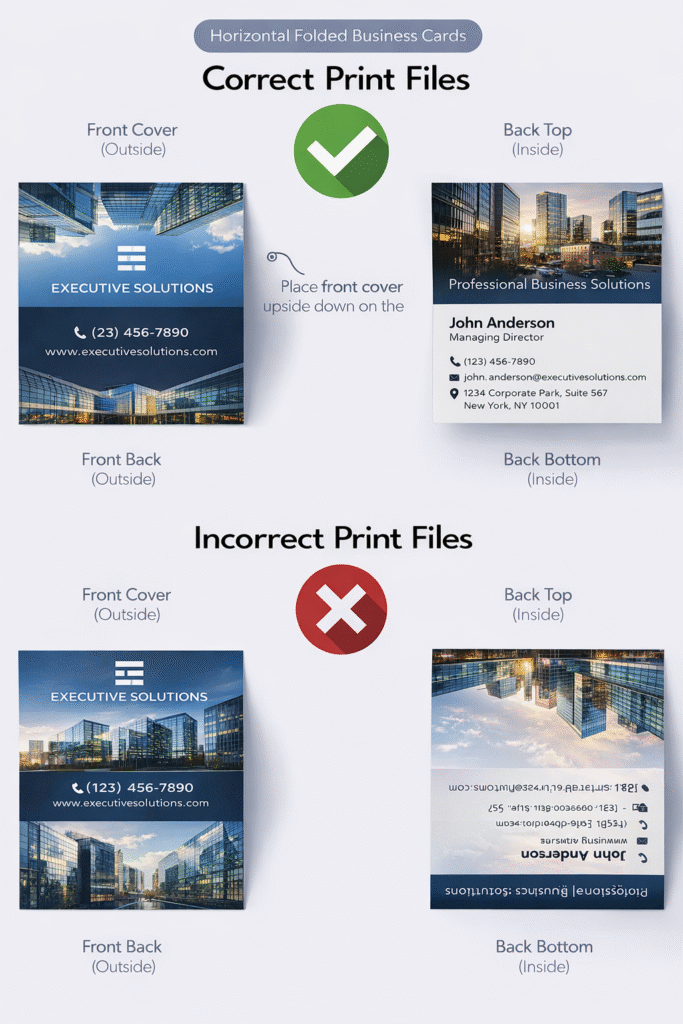
File Preparation Guide
questions about creating print-ready artwork.
Bleed & Trim Guidelines
What does bleed mean?
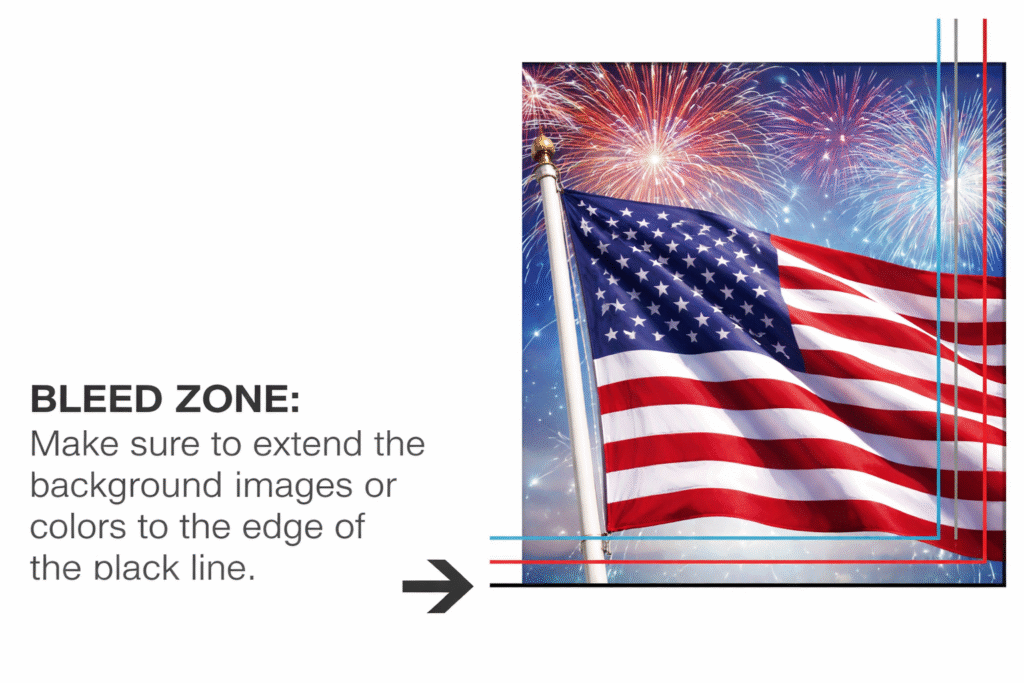
In printing, a bleed refers to the extra area added around your artwork that extends beyond the final trim size. This portion is cut off during finishing. The purpose of a bleed is to allow background colors and graphics to extend past the edge so that, once trimmed, your design reaches the edge cleanly without any unwanted white borders. For best results, be sure to download and use the correct product templates from our templates page.
When producing items like business cards and postcards, we do not print each piece on paper that matches its exact final size. Instead, multiple jobs are arranged together on a large press sheet in a process known as gang-run printing. After printing, each piece is cut down to its finished dimensions. Because trimming cannot be perfectly precise every time, slight variations may occur. A job may be cut slightly inside or outside the trim line, which could leave a thin white edge or even show part of a neighboring design. To avoid these issues, we require bleed on every file so there is extra margin to ensure a clean final result.
All print-ready files must include full bleed. Please refer to the list below to determine the correct bleed for your product. For example, most standard business cards require a 0.1″ bleed. A 2″ x 3.5″ business card without rounded corners should therefore be submitted at 2.1″ x 3.6″ including bleed.
0.1″ Bleed:
Most business cards, folded business cards, bookmarks, CD packages, club flyers, collector cards, DVD packages, event tickets, most postcards, rack cards, rip business cards, rolodex cards, stickers, table tents, greeting cards, and “wink” special shapes.
0.125″ Bleed:
A-frame signs, banners, brochures, door hangers, envelopes, flyers, folded hang tags, hang tags, illumaprint panels, letterheads, mini menus, notepads, posters, large format posters, roll labels, retractable banner stands, staggered cut flyers, window clings, window decals, yard signs, booklets, calendars, and catalogs.
0.3″ Bleed:
Folders.
0.325″ Bleed:
Business cards with rounded corners (2″ x 3.5″ and 3.35″ x 2.17″), postcards with rounded corners (4″ x 6″, 5.5″ x 8.5″, 4.25″ x 5.5″, and 5″ x 7″), and all special shapes except the “wink” shape, which requires a 0.1″ bleed.
How to create crop marks? What are they?
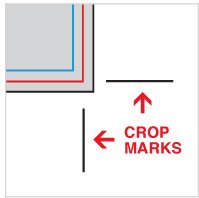
Crop marks are small lines placed on a design to indicate exactly where the final piece will be trimmed. They act as guides during the cutting process to ensure accurate finishing.
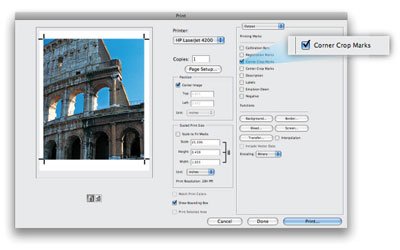
To add crop marks in Photoshop, follow these steps:
Open your file in Photoshop.
Go to File > Print.
In the print dialog box, select Output from the drop-down menu.
Check the option for Corner Crop Marks.
Click Print.
You may submit files that include crop marks, provided they are positioned outside the actual artwork area. Please make sure the crop marks do not appear within the design itself, as we do not remove crop marks that are embedded in the artwork.
What Are Guidelines and How Should I Set Them Up?
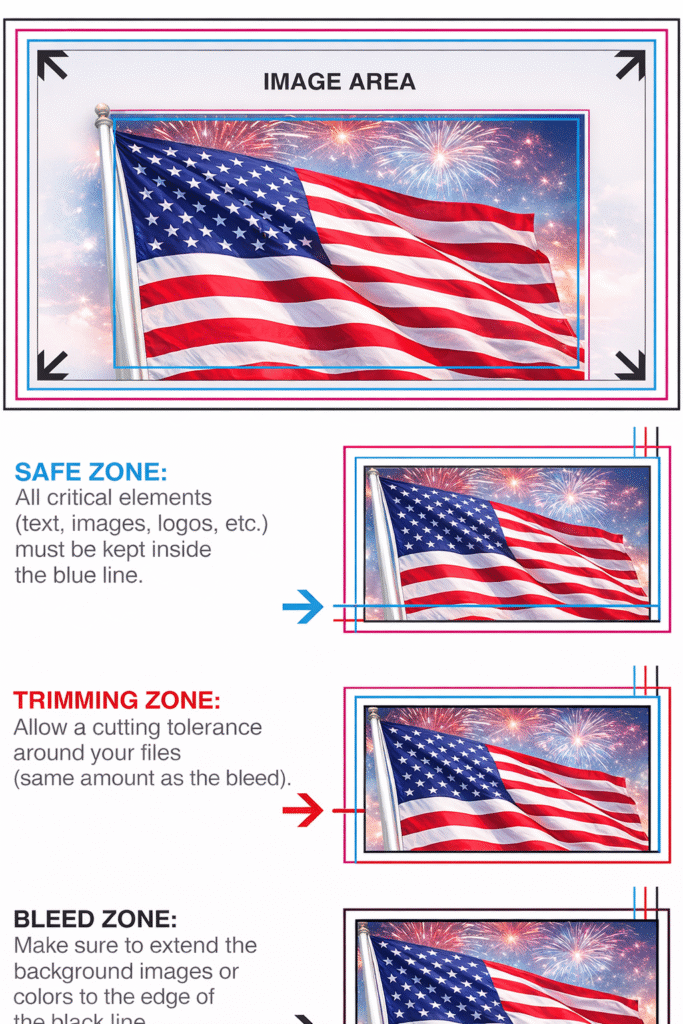
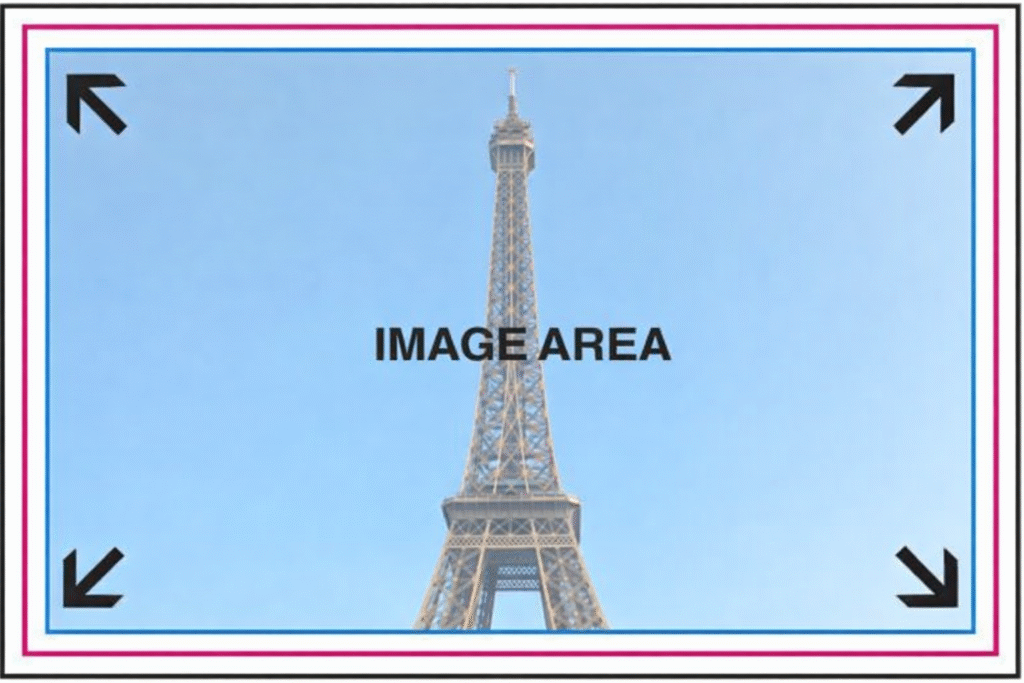
Using guidelines in your artwork is highly recommended when preparing print-ready files. Guidelines such as the bleed area, trim line, and safe zone indicate where your product will be cut and help ensure important elements like text and graphics stay clear of the trim edge.
Be sure to include bleed on all sides of your design, and keep all essential content — including text and key graphics — within the Safe Zone to prevent any important details from being trimmed off.
What Is the Image Area?
Image Area is the area of the artwork that will appear on the final print.
Can you explain what the safe zone is?
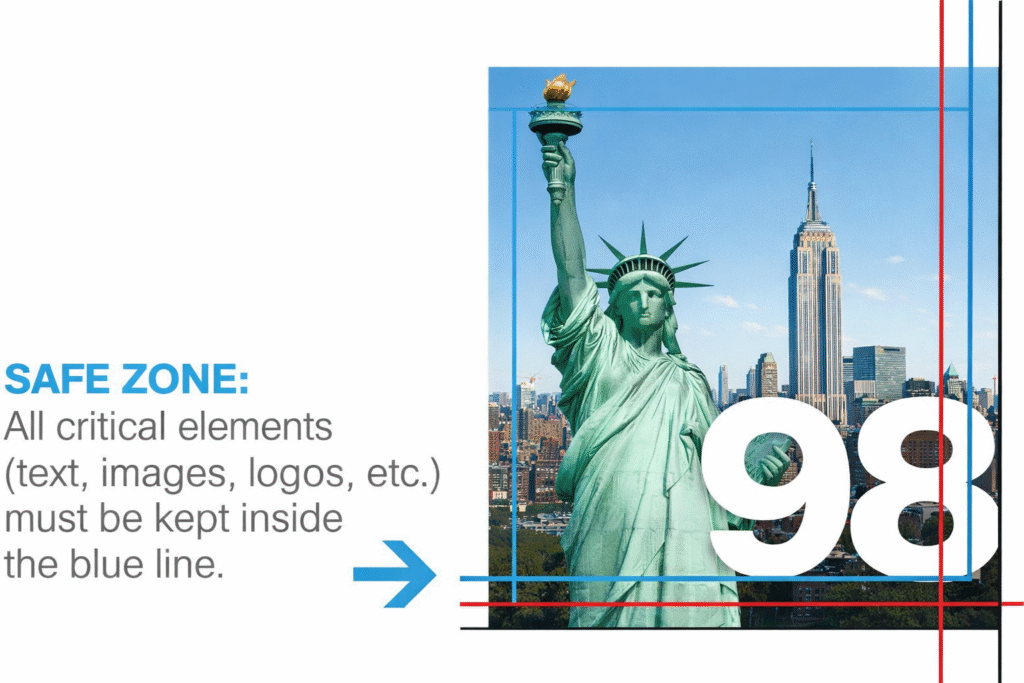
The Safe Zone is the designated area where all essential elements—such as text, images, logos, and other important content—should be placed to prevent them from being cut off when the product is trimmed to its final size. Please ensure that all critical elements stay within the Safe Zone, as anything placed on or beyond the Safe Zone boundary may be trimmed during the cutting process.
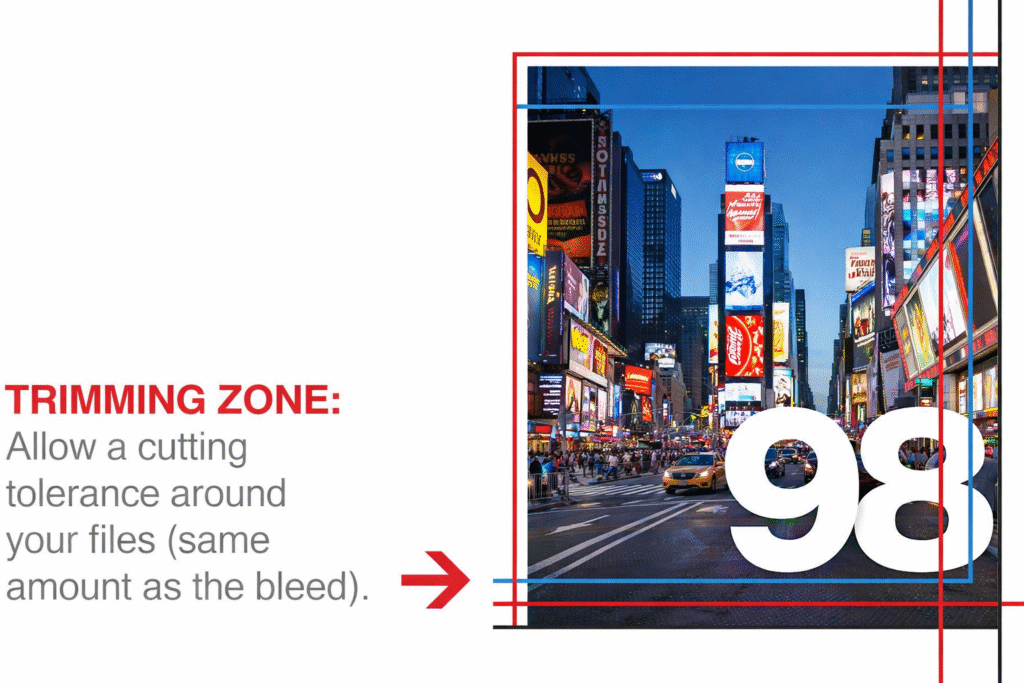
What is meant by the trimming zone?
The Trimming Zone, also known as the trim line, marks where the product will be cut to achieve its final size. This line represents the finished dimensions of the product. Please note that slight variations can happen during the trimming process, and we cannot guarantee that the cut will align exactly with the trim line.
Is it okay to use borders in my artwork?
Borders are not recommended because slight shifts can occur during the cutting process. If the product is not trimmed precisely along the trim line, the borders may look uneven. This is especially noticeable on smaller items, such as business cards, where even a half-millimeter shift can make the borders appear misaligned.
Color Settings & Modes
How can I ensure the foreground and background colors match in my design?
To match your background color with your logo—for example, if your logo is a square with a black background that needs to be placed on a 2″ x 3.5″ business card template—follow these steps:
First, open your logo in your design software (such as Adobe Illustrator or Photoshop). Use the Eyedropper tool to sample the background color of the logo—black in this example. Take note of the CMYK values of the sampled color.
For instance, the values might be C=0, M=0, Y=0, K=100 (standard 100% black), or C=40, M=30, Y=30, K=100 (four-color rich black).
Next, in the Advanced Designer software—and before inserting your logo—set the background color using the exact CMYK percentages you recorded from your logo. Doing this ensures that both areas use the same color values, preventing any variation in shades of black when the cards are printed.
The same process can be applied when matching any other color.
What color choices are available?
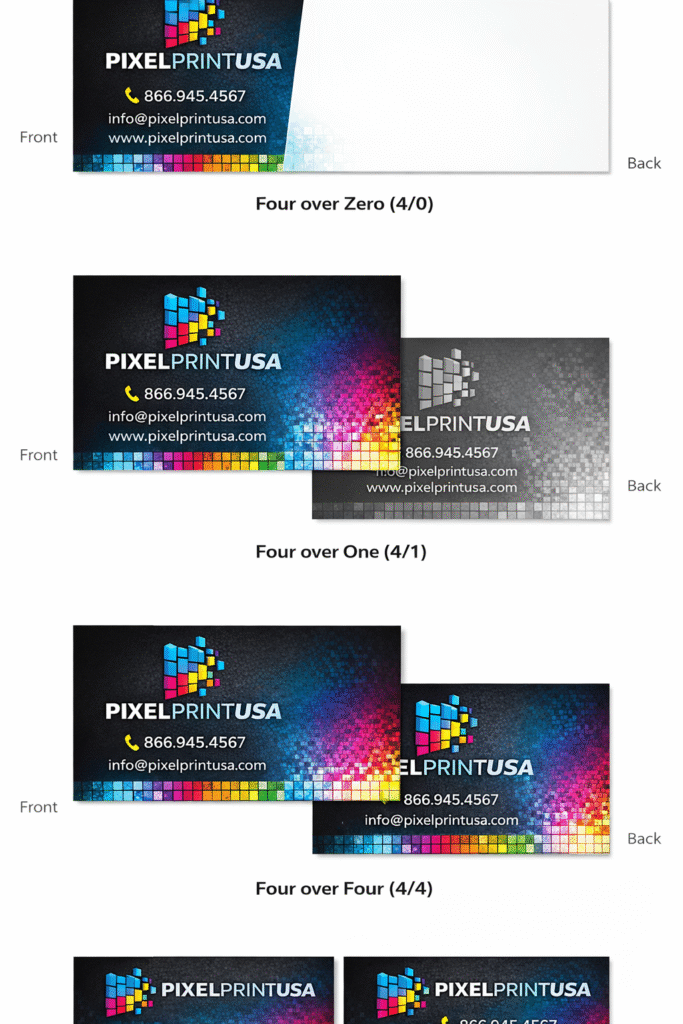
Pre-press color options are organized into three main categories:
Full Color Front / Full Color Back (4/4): A four-color printing process applied to both the front and back sides of the sheet.
Full Color Front / Grayscale Back (4/1): Full-color printing on the front side, with black-and-white (grayscale) printing on the back.
Full Color Front / Blank Back (4/0): Four-color printing on the front side only, with no printing on the back.
Which color mode is considered acceptable?
Please submit your print-ready digital files in either CMYK or RGB color mode, depending on the specific product requirements. All black-and-white artwork must be provided in grayscale mode. Files prepared in any other color mode will not be accepted.
What does CMYK mean?
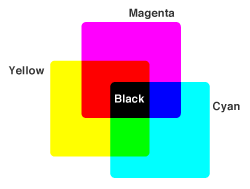
CMYK stands for Cyan, Magenta, Yellow, and Key (Black). These four ink colors are used in the offset printing process. Cyan is a blue tone used as one of the primary inks in four-color printing, while Magenta is a vibrant pink shade that is also part of the standard four-color printing system.
What is meant by four-color process printing?
The four-color process is a printing technique that combines tiny dots of cyan, magenta, yellow, and black to reproduce continuous tones and create a printed image that closely matches the colors of the original artwork.
What is RGB color mode, and how do I convert RGB to CMYK?
The Trimming Zone, also known as the trim line, marks wh
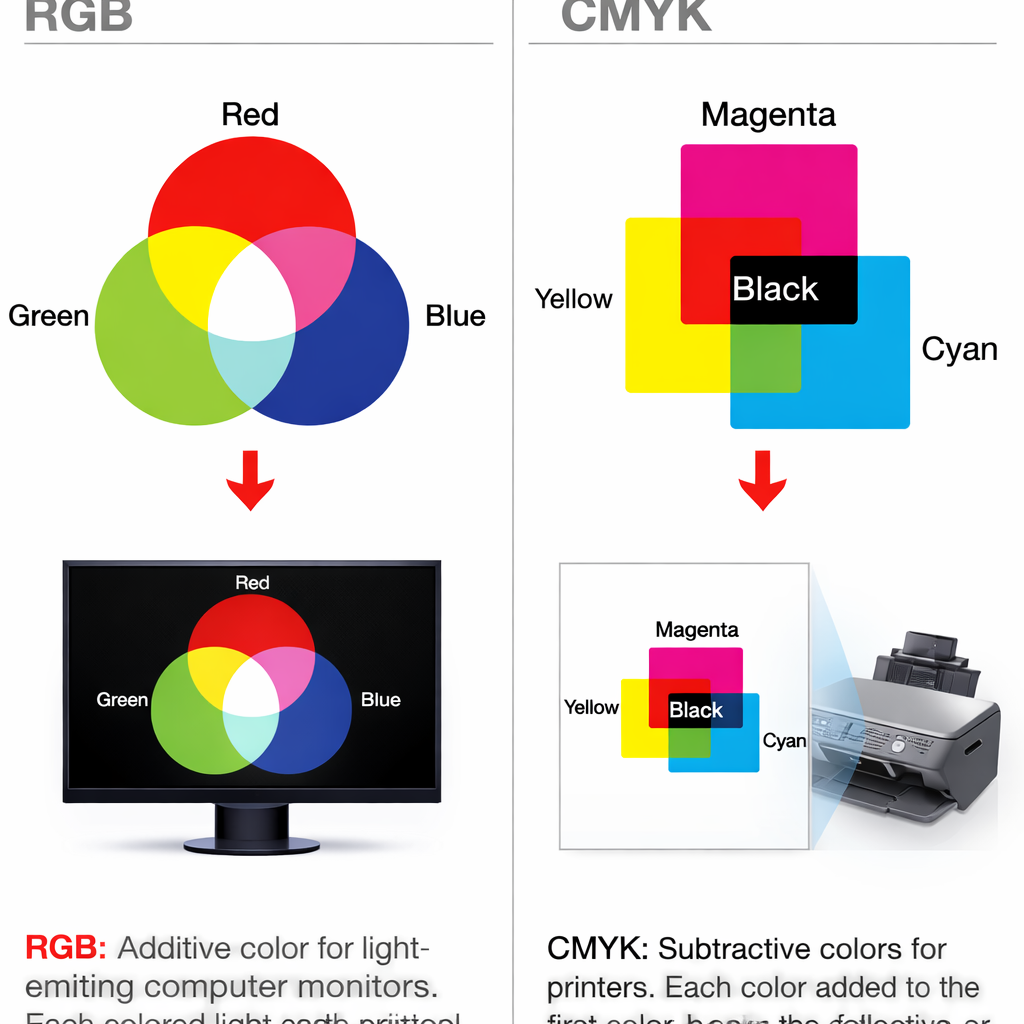
RGB color mode is created by combining three colors: Red, Green, and Blue. Devices such as computer monitors, scanners, and digital cameras use these three colors to display the final image. Printing presses, however, use four ink colors—CMYK—to produce printed materials. For this reason, RGB files must be converted to CMYK before printing.
While a file can be converted from RGB to CMYK, converting from CMYK back to RGB is not recommended, as some image data may be lost and cannot be restored.
Although your design may be created in RGB, it will ultimately be printed in CMYK. Colors in RGB may appear more vibrant on a screen, but they will not print exactly the same way.
To convert an RGB file to CMYK in Photoshop, go to Image > Mode > CMYK.
How important is it to convert my files into CMYK format?
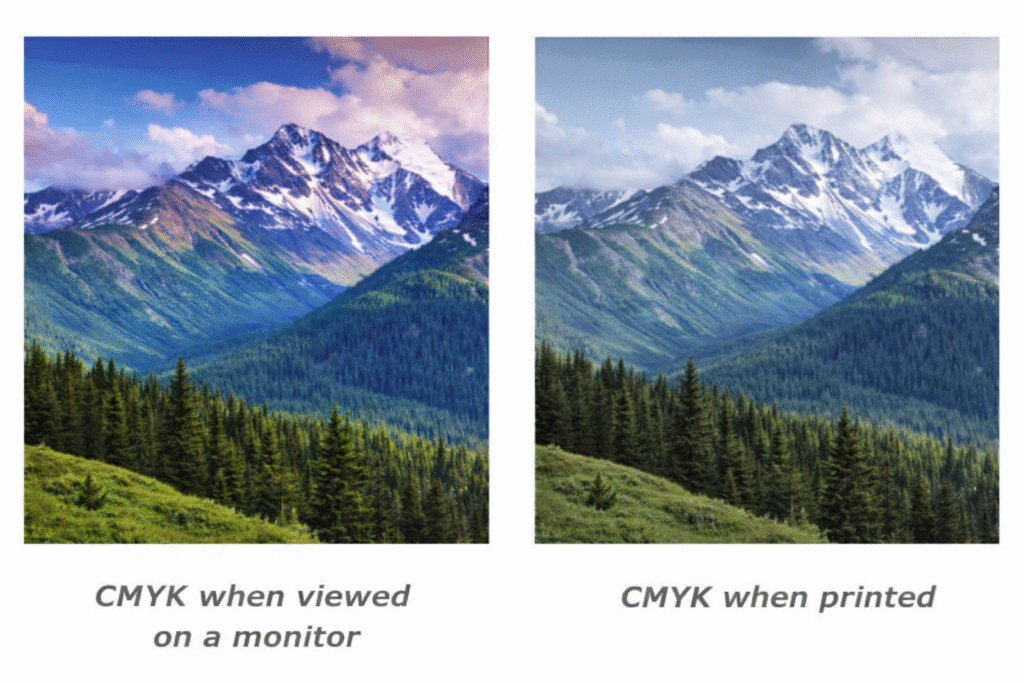
It is essential to convert your files to CMYK, as this is the only color mode we accept for printing. Files submitted in any other color mode may not yield the best printing results. Although many commercial printers can process RGB images, using RGB color mode can negatively affect the appearance of the final printed product.
What are image tones and highlights?
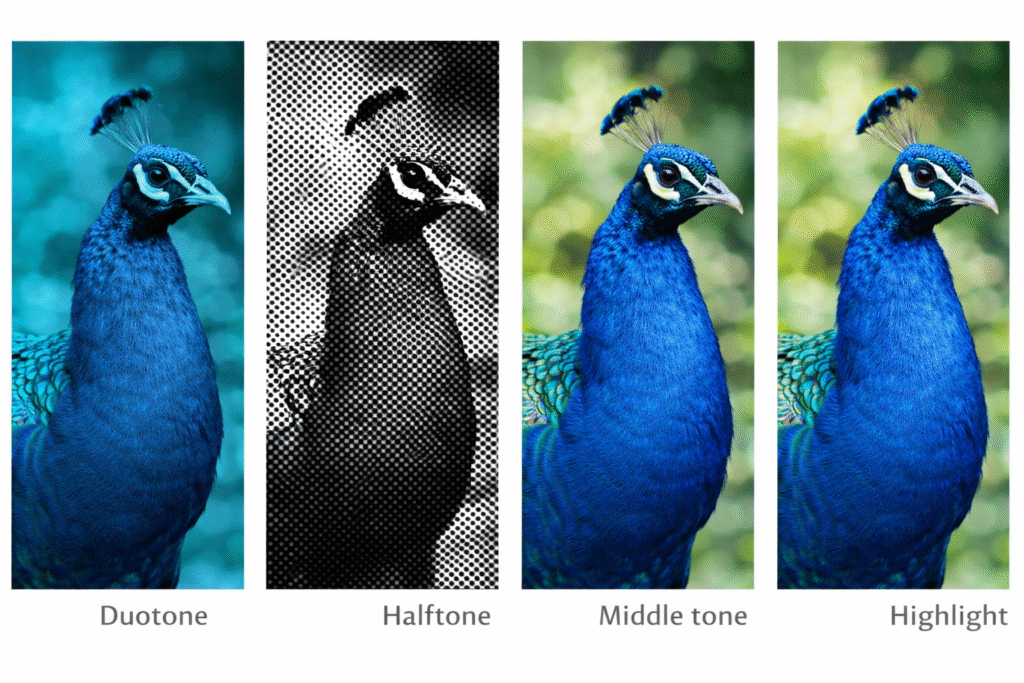
Continuous tone imagery: An image that displays a seamless range of shades and blended colors.
Duotone: A halftone version of an image reproduced using two different colors.
Halftone: A technique that simulates continuous tone images by using small dots.
Middle tone: The mid-range tones in an image that fall between the highlights and shadows.
Highlight: The brightest or lightest area within an image.
What is grayscale mode, and what is rich black?
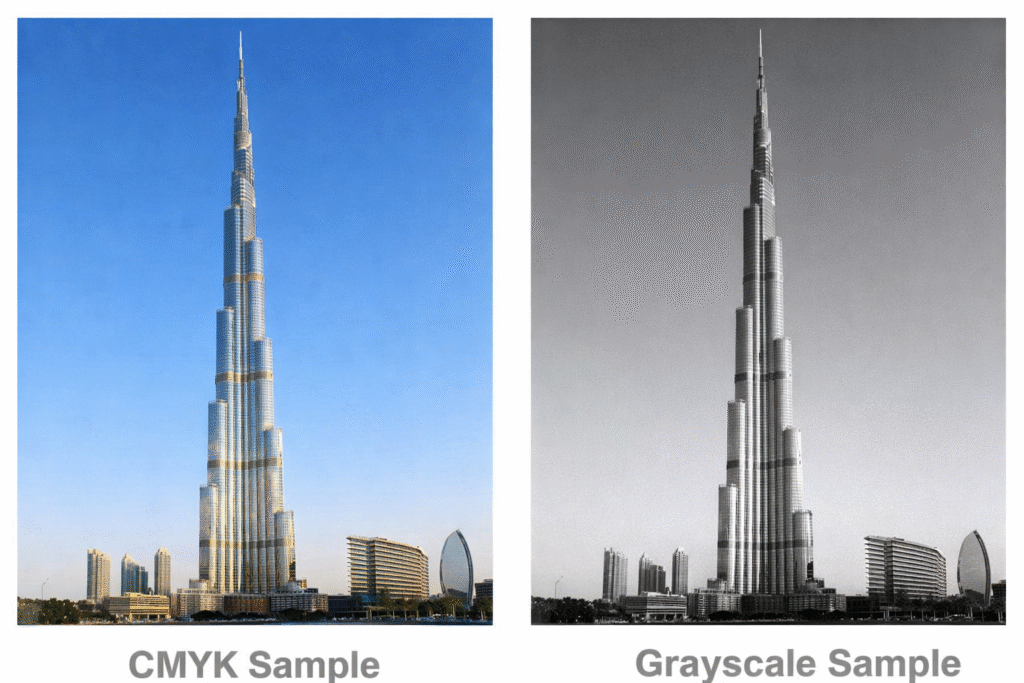
Grayscale color mode, commonly referred to as black-and-white mode, consists only of black and white and is used to reproduce images in varying shades of gray.
On a computer monitor, black appears as a single solid color. In print, however, black can be produced in different ways, including “rich black.” Rich black is a darker, more intense black created by combining percentages of all four CMYK inks.
For coated paper stocks, rich black can be created using:
C = 60, M = 40, Y = 40, K = 100
orC = 30, M = 30, Y = 30, K = 100
For uncoated paper stocks, the recommended rich black values are:
C = 20, M = 20, Y = 20, K = 100
For gray tones, we recommend setting the file to:
C = 10, M = 10, Y = 10
Regarding the K value, any percentage below 100 is considered a shade of gray rather than solid black.
Which color profile should I select when working with AI, PS, PDF, or JPG files?
You should select the GRACol2006_Coated1v2.icc color profile to ensure your final printed product matches your design.
What does RGB stand for?
RGB indicates Red, Green, and Blue and is primarily used for electronic and photography purposes. These 3 colors combined in various percentages create any color in the visible spectrum. Various products use RGB because it offers the widest range of colors.
In what ways do CMYK and RGB display colors differently?
CMYK and RGB color models display colors differently because they use distinct color-mixing processes and varying levels of color blending. To achieve accurate results, colors must be properly converted to the appropriate color profile based on the intended medium.
RGB offers a wider color gamut, which makes it more suitable for producing bright and vibrant colors on digital screens, depending on the product. However, when used for print, RGB colors will not appear as vivid as they do on a monitor.
CMYK, on the other hand, has a more limited color range but provides more consistent and predictable results for printed materials. For accurate color reproduction, both RGB and CMYK files should be correctly converted using professional design software.
Keep in mind that colors may still vary slightly between what you see on screen and the final printed result.
Accepted File Types & Dimensions
What is meant by a bitmapped image?
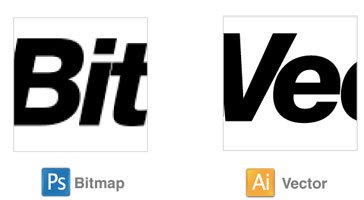
A bitmap refers to a grid of bits (or pixels) that come together to create an image. Therefore, a bitmapped image is made up of individual pixels. While bitmap images can store high-resolution detail, they do not scale well. When enlarged, they often appear jagged or pixelated, and when reduced in size, they may look blurry. Bitmaps are commonly used for digital photographs and detailed images.
In contrast, vector graphics do not lose quality when resized. Unlike bitmapped images, which become distorted when scaled, vector graphics can be enlarged or reduced to any size without losing sharpness or clarity.
As illustrated in the example below, zooming in on a bitmap image causes it to look rough and pixelated, whereas a vector graphic remains smooth and crisp.
How is a vector image defined?
A vector image is created using lines and curves defined by mathematical equations. Because of this, it can be resized, adjusted, or moved without any loss of quality or sharpness. Unlike bitmapped images, which lose clarity when scaled, vector graphics can be enlarged or reduced to any size while maintaining clean, precise edges.
As shown in the example below, zooming in on a bitmap graphic causes it to appear pixelated and jagged, while the vector graphic remains smooth, sharp, and well-defined.
Which print-ready file formats are approved for upload?

The following file formats are accepted for upload: .TIF, .TIFF, .EPS, .AI, .PSD, .BMP, .GIF, .JPG, .PNG, and .PDF.
Recommendation: To help reduce file size, we suggest uploading files in .JPG format. For all other formats, please make sure that all layers are flattened before submission.
.TIF (Tagged Image File): A high-quality graphic format commonly used to store multi-color images. It supports layers, multiple pages, raster and vector images, as well as both lossy and lossless compression.
.TIFF (Tagged Image File Format): Similar to .TIF, this is a high-quality image format used for multi-color graphics. It supports layers, multiple pages, raster and vector content, and both lossy and lossless compression.
.EPS (Encapsulated PostScript): A PostScript-based file format primarily used for transferring images and graphics across different operating systems.
.AI (Adobe Illustrator file): A vector-based file format that uses paths connected by anchor points to create scalable graphics.
.PSD (Photoshop Document): An image file created in Adobe Photoshop that supports multiple features such as layers and adjustment layers. We recommend flattening .PSD files before uploading.
.BMP (Bitmap): A high-quality image format that can result in large file sizes. It may use compression methods to reduce file size.
.GIF (Graphics Interchange Format): A format that uses lossless compression and maintains image quality. GIF files use indexed color and are limited to a maximum of 256 colors.
.JPG (Image Compression File): A compressed image format that uses lossy compression. It is widely used for digital photographs because it significantly reduces file size while maintaining acceptable image quality.
.PNG (Portable Network Graphics): A bitmap format that uses lossless compression. It produces smoother gradients and avoids some of the distortions seen in .JPG files. It is commonly used for archiving images but does not support CMYK color mode.
.PDF (Portable Document Format): The preferred file format for pre-press quality. It is ideal for viewing across multiple computers, as it preserves formatting, fonts, and design elements both on-screen and in print.
What distinguishes a .TIF file from a .TIFF file, and a .JPG from a .JPEG?
There is essentially no difference between .TIF and .TIFF, or .JPG and .JPEG, other than the length of the file extension—one uses three letters and the other uses four. The file format itself is identical, and changing the extension from three letters to four (or vice versa) does not alter the file. For example, renaming a .TIF file to .TIFF will not affect how it opens or functions; only the file name changes.
These dual extensions originated from older Windows systems, which required file extensions to be limited to three characters. As a result, .TIFF was shortened to .TIF to comply with this restriction. Macintosh systems did not impose this three-letter limitation, allowing longer and more descriptive extensions, which is why four-letter extensions like .TIFF and .JPEG are commonly used on Mac platforms.
What is the maximum allowed file size for uploads?
Maximum file size for uploads: 75MB (megabytes) per file.
Before uploading your file, make sure to check the image size. In Photoshop, click on Image > Image Size, and proportion your image correctly.
Recommended: To reduce file size, please upload in .jpg format. For all other file formats, ensure all layers are flattened.
Why is it necessary to flatten files before printing?
It’s important to flatten your files before uploading them to print to avoid layering issues. If fonts are not embedded and files are not flattened, you risk having your final prints come out much differently than intended.
What steps should I follow to flatten my files for print?
You can flatten your files using Adobe Acrobat Pro or Photoshop. Files created on Adobe InDesign or Illustrator cannot be flattened directly on said platforms and therefore will need to be converted to a PDF first before uploading to Photoshop or Acrobat Pro.
Photoshop method:
1. Open the PDF file*
2. Make sure the layer is unlocked
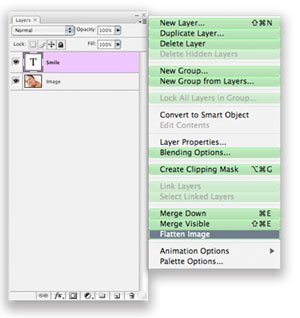
3. Right-click on the layer and select “Flatten Image”
4. Select “Save As” to save as a Photoshop PDF. Color mode should be CMYK and at 300 dpi.
*If your files were created directly on Photoshop, skip step 1 and simply use the “Flatten Image” feature directly on your layers.
Adobe Acrobat Pro method:
1. Make sure you have a backup file of your PDF
2. Locate Print Production (under the Advanced dropdown or in the Tools tab depending on your version of Acrobat)
3. Select the Flattener Preview
4. If needed, adjust the Raster/Vector balance. If you choose a balance of 1-99, you will need to deselect the “Clip Complex Regions” box.
5. Check the “Convert All Text to Outlines” box
6. Click “Apply” to flatten the PDF & close the Flattener Preview
All versions of Acrobat may vary. If these instructions do not help, look up your version number and the steps online for the most accurate results.
Fonts & Typography
What is the difference between serif and sans-serif fonts?
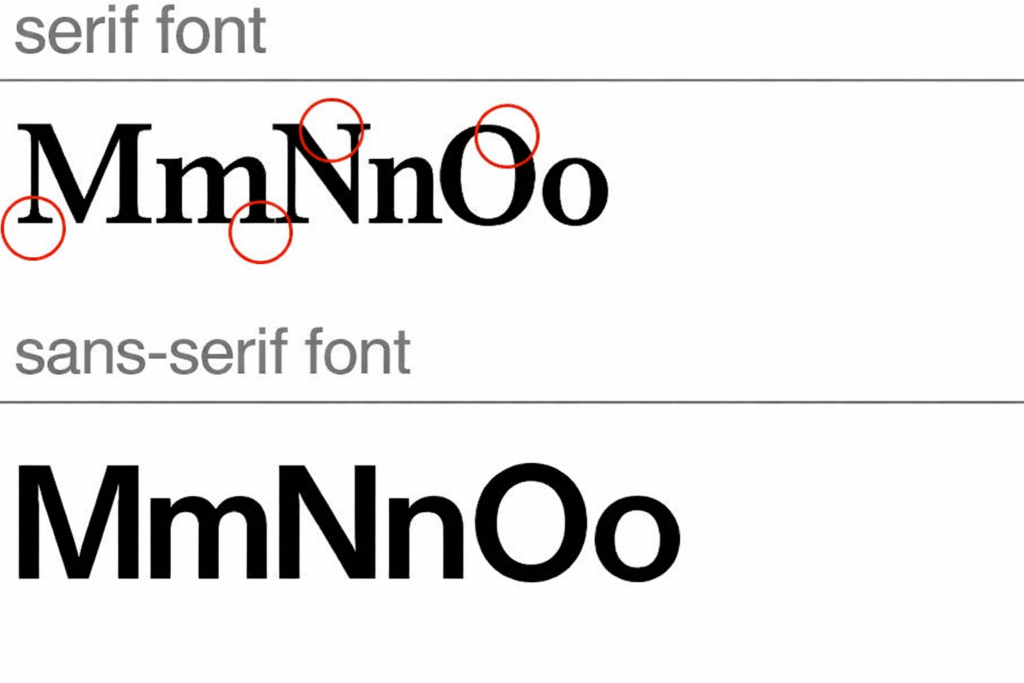
Serif and Sans-serif are typefaces that are commonly used for body text. Serifs are the smaller lines on the main strokes of letters and numbers. The structure of the serifs is considered less harsh for reading large body of text, which is why newspapers and books often use this type of typeface.
A typeface without serifs is called Sans-serif (the word “sans” is French for “without”). Sans-serif typefaces are commonly used for electronic media. Since the computer screen has lower resolution compared to printed material, Sans-serif fonts are easier to read and follow than Serif fonts.
How are decorative fonts or decorative typefaces defined?
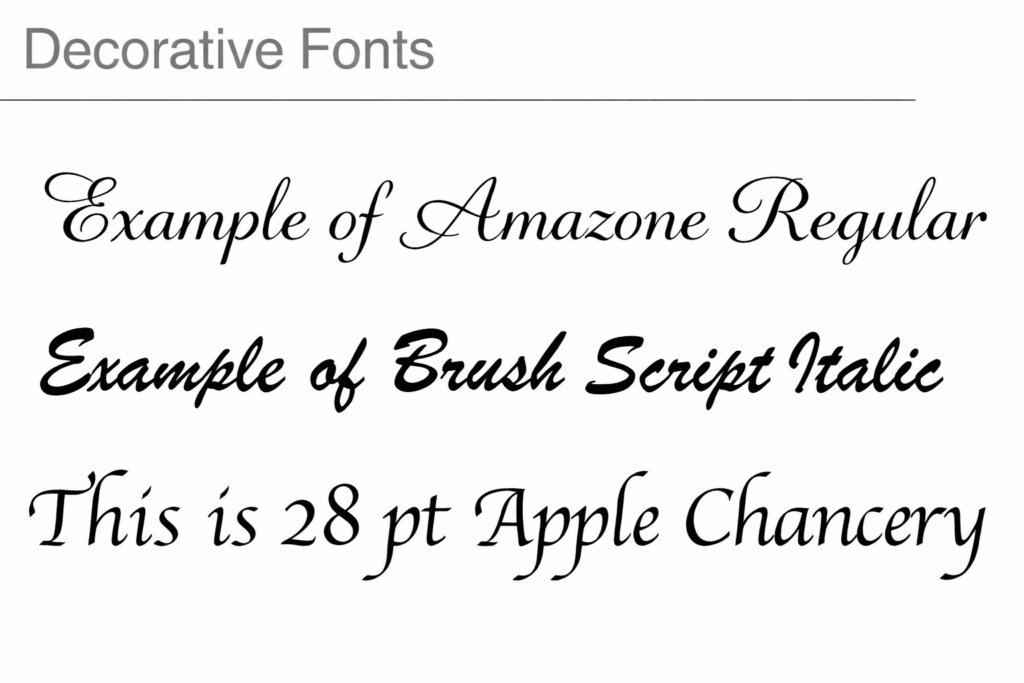
Decorative typefaces, sometimes referred to as ornamental or display fonts, feature distinctive shapes and stylized proportions. Their unique design elements help emphasize the mood, theme, or message of the text. These typefaces are commonly used in creative and artistic designs and can play an important role in enhancing visual appeal.
Decorative fonts are primarily intended for display purposes—such as headlines, titles, or logos—and are generally not recommended for long blocks of body text.
There are many varieties of decorative fonts, including examples like Amazone, Brush Script, and Apple Chancery, as shown below.
What does it mean for a font to be embedded?
Embedding a font means storing your font information in the file so that when your file is opened on a different computer, the fonts do not vary in appearance. If your fonts are not embedded, a different font may be substituted for your document. To prevent these variations, embed all your fonts in PDF files.
How should I properly prepare my fonts and files for submission?
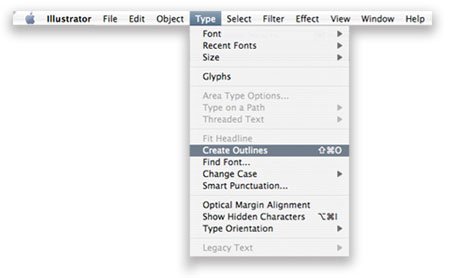
Please follow the following steps before you submit your files.
a. Fonts must be embedded in PDF files. (Some fonts have copyright restrictions and will not embed in PDF Files.)
b. Embed all images and outline text in Illustrator files.
d. Quark Express: Fonts and images must be included with all files submitted. (Mac only)
e. Flatten all layers when working in Photoshop.
When creating a file with a vector-based software such as Illustrator, follow these steps to outline fonts:
1. Select “Type”
2. Select “Create Outlines”
When trying to outline fonts in Photoshop, simply just flatten the image. rephrase them
What is the distinction between a typeface and a font?
Maximum file size for uploads: 75MB (megabytes) per file.
Before uploading your file, make sure to check the image size. In Photoshop, click on Image > Image Size, and proportion your image correctly.
Recommended: To reduce file size, please upload in .jpg format. For all other file formats, ensure all layers are flattened.
Image Resolution Requirements
What is called resolution?
Resolution, often referred to as DPI (dots per inch) or PPI (pixels per inch), describes the number of dots or pixels that form an image. The higher the DPI or PPI, the greater the image detail and the sharper the final printed result.
LPI (lines per inch) is another measure of resolution that relates specifically to halftone printing. It indicates how closely the lines in a halftone screen are spaced. A higher LPI—meaning the lines are closer together—produces a more detailed and clearer image.
To determine the proper resolution for print, both the printer’s DPI and the required LPI must be considered. DPI measures the number of printed dots per inch, while LPI determines how frequently the halftone lines (which hold those dots) appear within an inch. By evaluating both values together, you can calculate the appropriate image resolution. Generally, an image should have about 1.5 to 2 times more DPI than the LPI being used. For high-quality final prints, GotPrint uses 200 LPI.
What resolution is considered acceptable?
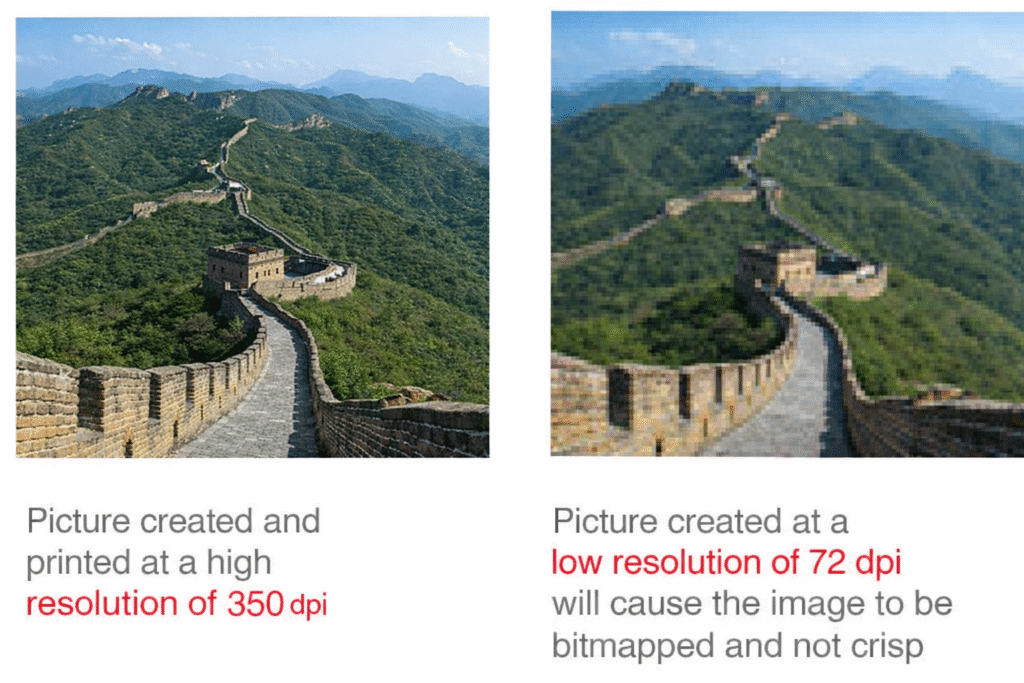
In order for an image to print correctly, all file formats must be submitted at a resolution of 350 dpi at 100% of the final print size. When file resolution is lower than 350 dpi, the final print will have a substantial drop in the image quality. For signage, please submit files with a resolution of 150 dpi.
A resolution of 350 dpi means 350 dots per every inch in the design.
Where can I find high-quality images?
You can obtain high-quality images from the following sources:
High-resolution stock photography
Professionally scanned, high-quality images
Digital cameras with at least 2.4 megapixels or higher
Important: Do not download images from the internet. Most online images are protected by copyright and are typically low resolution, making them unsuitable for print.
Keep in mind that monitor resolution is significantly lower than printer resolution. An image that appears sharp on your screen may not print clearly.
If you are purchasing images from a royalty-free website, be sure to select a high-resolution version at 350 dpi.
Your original design file should be created at 350 dpi (or 150 dpi for signage). Simply increasing the resolution of a low-resolution file will not improve its quality. It will only rescale the file and adjust pixel density—not increase the actual number of pixels.
When capturing images with a digital camera, make sure the camera is set to a high-resolution setting capable of producing 350 dpi output. Resolution cannot truly be improved after the photo has been taken. Also note that changing an image’s dimensions affects its resolution—reducing the image size increases the resolution value. For best results, always save images at 350 dpi.
Be aware that image resolution may change if the image is resized within a layout program or adjusted during PDF conversion.
Perfect Binding Specifications
Can crossover images or copy be used in booklets and catalogs?
For products that will be perfect bound, we do not recommend crossover images and/or copy, as these elements may be lost in the gutter and may not line up after binding.